I still remember the first time I needed to type a copyright symbol and had no idea where to find it. If you’ve ever searched for a heart symbol, an arrow, or a degree sign while working on a document or social media post, you’re not alone.
Learning how to make symbols with keyboard shortcuts can save you time and make your writing look more professional. Whether you’re creating school assignments, designing social media graphics, writing emails, or adding personality to your messages, keyboard symbols are incredibly useful.
The good news is that you don’t need special software or advanced computer skills. Most symbols are already built into your keyboard or operating system.
In this guide, I’ll show you the easiest ways to create symbols on Windows, Mac, and mobile devices, along with practical examples you can start using today.
Quick Answer: What Is the Easiest Way to Make Symbols With a Keyboard?

The easiest way to make symbols with a keyboard is to use keyboard shortcuts. On Windows, you can use Alt codes (such as Alt + 3 for ♥). On Mac, use the Option key combinations (such as Option + 2 for ™). Mobile users can access symbols by pressing and holding keys or opening the symbols keyboard.
Common symbols include:
- ♥ Heart
- © Copyright
- ® Registered Trademark
- ™ Trademark
- ° Degree
- ✓ Check Mark
- → Arrow
- € Euro
- £ Pound
- § Section Sign
What Are Keyboard Symbols?
Keyboard symbols are special characters that go beyond the standard alphabet and numbers. They include punctuation marks, currency signs, arrows, mathematical symbols, emojis, and icons used in everyday communication.
These symbols can serve many purposes:
- Adding emphasis to text
- Writing mathematical equations
- Creating professional documents
- Designing logos and graphics
- Sharing emotions in messages
- Indicating copyright or trademarks
Their meaning can also change depending on context. For example, a heart symbol may express love in a text message, while the copyright symbol has legal significance in publishing.
Today, keyboard symbols are used across websites, presentations, branding materials, and social media platforms.
How to Make Symbols With Keyboard Comparison Table
| Symbol | Main Meaning | Best Use |
| ♥ | Love and affection | Messages, tattoos, social media |
| © | Copyright protection | Websites, books, blogs |
| ® | Registered trademark | Brands and businesses |
| ™ | Trademark | Product names and logos |
| ° | Degree measurement | Weather and mathematics |
| ✓ | Completed or approved | Checklists and forms |
| → | Direction or movement | Presentations and diagrams |
| ★ | Achievement or favorites | Ratings and designs |
| € | Euro currency | Financial documents |
| £ | British Pound | Pricing and invoices |
| § | Legal section | Academic and legal writing |
| ∞ | Infinity | Tattoos and personal designs |
Heart Symbol (♥): The Most Popular Keyboard Symbol
The heart symbol is one of the most recognized characters in digital communication. It is commonly used to express love, friendship, appreciation, and support.
On Windows, you can create it using Alt + 3 on the numeric keypad. Many people also use it in usernames, social media bios, and greeting cards.
The heart has cultural significance across the world, but its exact meaning depends on the relationship and context. In design, it is often paired with names, anniversaries, or inspirational quotes.
Because it is simple and visually appealing, it remains one of the most used symbols online.
Best for: Social media posts, tattoos, greeting cards, usernames, personal artwork.
Copyright Symbol (©): Protecting Creative Work
The copyright symbol tells others that creative content belongs to its creator. You’ll often see it on websites, books, photographs, and videos.
You can type it on Windows using Alt + 0169 or on Mac with Option + G.
While the symbol itself does not automatically guarantee legal protection in every country, it serves as a clear notice of ownership. Bloggers, photographers, and business owners frequently include it in website footers.
Its clean appearance also makes it suitable for professional branding and digital publications.
Best for: Websites, books, portfolios, photography credits, blog footers.
Trademark Symbol (™): Building a Brand Identity
The trademark symbol is widely used by businesses and entrepreneurs to indicate that a name, slogan, or logo is associated with a particular brand.
You can create it with Alt + 0153 on Windows.
Unlike the registered trademark symbol, ™ does not necessarily mean a trademark is officially registered. Instead, it shows that the owner claims rights to the brand name.
You’ll commonly find it on product packaging, advertisements, and startup websites.
Best for: Logos, startups, product names, advertisements, business cards.
Registered Trademark Symbol (®): Official Brand Recognition
The registered trademark symbol signifies that a trademark has been officially registered with the appropriate authority.
Use Alt + 0174 on Windows or Option + R on Mac.
This symbol adds credibility and professionalism to a brand. It is often displayed next to company names and well-known products.
Businesses should only use it if their trademark is legally registered, as misuse may create legal issues in some jurisdictions.
Best for: Established brands, packaging, websites, marketing materials, corporate identity.
Degree Symbol (°): A Small Character With Many Uses
The degree symbol appears in weather reports, science assignments, and mathematical calculations.
You can type it using Alt + 0176 on Windows.
Despite its small size, it plays an important role in communicating temperatures and angles clearly. Students, teachers, engineers, and meteorologists use it regularly.
It is one of the most practical symbols available on a keyboard and is especially useful for academic and professional work.
Best for: Temperature readings, mathematics, science reports, educational content.
Check Mark (✓): A Symbol of Completion
The check mark instantly communicates approval, completion, or success. It’s frequently used in to-do lists, surveys, and presentations.
Many users copy and paste it, while others access it through character maps or symbol menus.
The simplicity of the check mark makes it effective in both digital and print formats. Businesses often use it to highlight features or benefits in marketing materials.
Its universal meaning makes it easy to understand across languages and cultures.
Best for: Task lists, presentations, forms, websites, productivity tools.
Arrow Symbol (→): Showing Direction Clearly
Arrow symbols are excellent for indicating movement, progression, or direction.
They’re commonly used in:
- Flowcharts
- Instructions
- Maps
- Presentations
- Infographics
Arrow symbols are especially helpful in educational and design settings because they guide the reader’s attention naturally.
Many people use arrows in social media posts to highlight links or important information. Their clean and simple design makes them highly versatile.
Best for: Diagrams, presentations, instructions, educational materials, social media.
Star Symbol (★): Recognition and Achievement
The star symbol is associated with excellence, ratings, and accomplishments.
From hotel reviews to classroom reward systems, stars communicate positive recognition. Designers also use them in logos, banners, and promotional graphics.
The star’s popularity comes from its versatility. It can feel playful, professional, or inspirational depending on how it is used.
Best for: Ratings, logos, certificates, promotional graphics, awards.
Euro Symbol (€): European Currency Sign
The euro symbol represents the official currency used in many European countries.
It appears regularly in:
- Financial reports
- Online stores
- Travel blogs
- Invoices
- Accounting software
For businesses that serve international audiences, knowing how to type currency symbols can improve communication and professionalism.
Best for: Pricing, invoices, financial documents, travel content, e-commerce.
Pound Symbol (£): Common in International Business
The pound symbol represents the British Pound Sterling and is essential for businesses and individuals dealing with UK markets.
It is one of the most frequently used currency symbols worldwide. Whether you’re managing an online store or writing about travel expenses, this symbol helps provide clarity.
Its consistent use is especially important for businesses that operate across multiple countries.
Best for: Pricing pages, accounting, invoices, travel guides, online stores.
Section Symbol (§): Useful for Legal and Academic Writing
The section symbol is often found in legal documents, textbooks, and academic references.
Although many people rarely use it in everyday communication, it remains valuable for:
- Legal citations
- Research papers
- Policy documents
- Academic publications
Because of its specialized use, it adds professionalism and precision when referencing sections of a document.
Best for: Legal writing, research papers, academic work, official documents.
How to Make Symbols With Keyboard in Windows 10
Typing symbols on a Windows 10 keyboard is easier than many people think. You can use simple keyboard shortcuts, the Alt key, or built-in Windows tools to insert special characters while writing documents, emails, or messages. Once you learn a few useful shortcuts, you can type common symbols without searching for them every time.
Windows 10 also includes an Emoji and Symbols panel that makes it easy to find different characters. Press Windows + . (period) to open the panel, then explore its symbols section to find the character you need. This is a convenient option when you do not remember a particular keyboard shortcut.
How to Make Symbols With Keyboard Shortcuts
Keyboard shortcuts are one of the quickest ways to type frequently used symbols. Depending on your keyboard layout, you can use combinations involving Shift, Alt, and other keys to enter characters such as @, #, $, %, and &. For example, on many US keyboard layouts, Shift + 2 types the @ symbol.
Some special characters can also be entered using Alt codes. To use these codes, hold down the Alt key and type the required number on the numeric keypad. Keep in mind that Alt codes may depend on the keyboard layout and Windows settings, so it is helpful to test them on your device.
Special Characters Symbols List
A special characters symbols list is useful when you need to find symbols that are not easy to locate on a standard keyboard. It can include mathematical signs, currency symbols, punctuation marks, arrows, copyright symbols, and other useful characters. Having these symbols in one place can save time when working on documents or online content.
You can use Windows Character Map to browse and copy special characters. Search for Character Map in the Windows Start menu, open the application, select the font you want, and choose a symbol to copy. You can then paste it into your document, email, or text field.
How to Make Symbols With Keyboard on Laptop
Typing symbols on a laptop is similar to using a desktop keyboard, but some laptops have a different key layout. You can usually type common symbols by pressing Shift along with the appropriate key. For example, the number row often contains symbols such as !, @, #, $, and %.
Some laptops also support an embedded numeric keypad or special Fn key combinations. If you want to enter Alt codes but your laptop does not have a separate numeric keypad, you may need to enable its built-in number pad or use the Windows Symbols panel instead. The exact method depends on your laptop model.
Keyboard Symbols List
A keyboard symbols list helps you quickly identify the characters available on your keyboard and understand how to type them. Common examples include @ (at sign), # (hash), $ (dollar sign), % (percent sign), & (ampersand), * (asterisk), and ? (question mark). Many of these symbols can be typed using the Shift key.
Other symbols, such as ©, ®, ™, €, £, and mathematical characters, may require Alt codes, Character Map, or the Windows symbols panel. Learning where to find these characters makes everyday typing easier, especially when creating reports, filling out forms, or writing professional messages.
How to Type @ on Keyboard Shortcut
The method for typing the @ symbol depends on your keyboard layout. On a standard US keyboard, press Shift + 2 to type @. On some UK keyboards, the shortcut is Shift + ‘ (apostrophe). Other layouts may use different key combinations.
If the usual shortcut does not work, check your Windows keyboard language and layout settings. Press Windows + Spacebar to switch between installed keyboard layouts and try the shortcut again. This is especially helpful when the symbol printed on your keyboard does not match the character appearing on your screen.
List of Special Characters on Keyboard
There are many special characters you can use while typing, including punctuation marks, currency signs, mathematical symbols, and decorative characters. Some examples are ©, ®, ™, €, £, ¥, ±, ÷, ×, and °. These characters are commonly used in writing, calculations, business documents, and online communication.
You do not need to memorize every special character or its shortcut. Windows provides useful options such as Character Map and the Emoji and Symbols panel to help you find and insert characters. Simply select the symbol you need, copy it, and paste it wherever you want to use it.
How to Type the Number Symbol on Keyboard
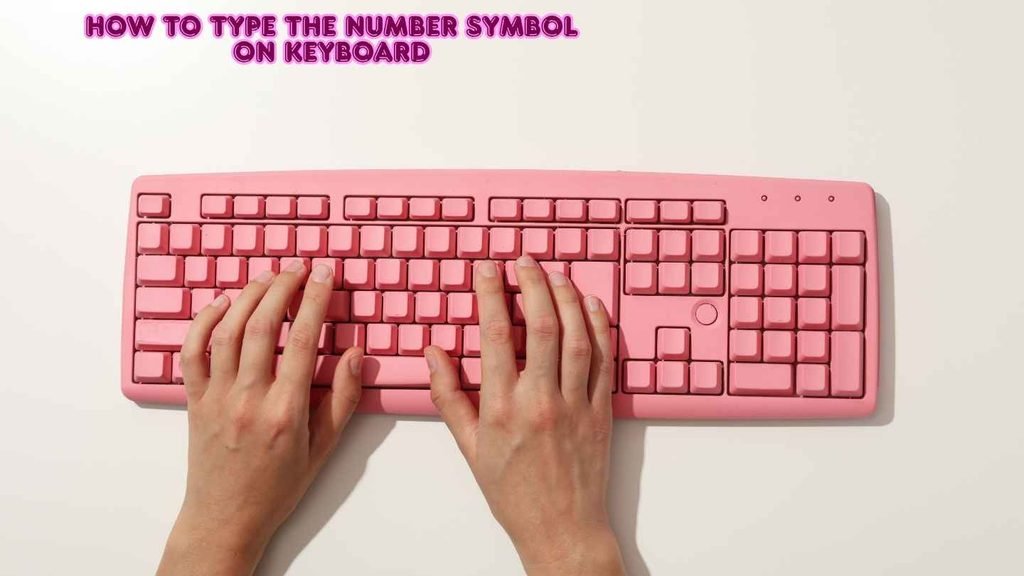
The number symbol can refer to different characters depending on what you want to type. The # character is commonly called the number sign, hash, or pound sign, while the № symbol is used to indicate a number in some languages and contexts. On a US keyboard, you can type # by pressing Shift + 3.
If you want to type a different number-related symbol, check your keyboard layout or use the Windows Symbols panel. You can also search for the required character in Character Map, select it, and copy it into your text. This method is useful when a symbol is not available through a regular keyboard shortcut.
Infinity Symbol (∞): Timeless and Personal
The infinity symbol suggests endless possibilities, eternity, and continuity.
Many people choose it for tattoos, jewelry, and artistic designs because it can hold deeply personal meanings. Some associate it with lasting friendships, while others see it as a reminder of resilience or hope.
Its elegant shape also makes it a favorite in minimalist design projects.
Best for: Tattoos, jewelry, wall art, inspirational designs, personal reminders.
Best How to Make Symbols With Keyboard for Tattoos
Some keyboard symbols translate beautifully into tattoo designs because they are simple and meaningful.
Popular choices include:
- ∞ Infinity
- ♥ Heart
- ★ Star
- → Arrow
- ✓ Check Mark
- ° Minimalist degree-inspired designs
Small symbols work especially well for wrist, finger, and ankle tattoos. Before choosing a design, think about what the symbol means to you personally rather than simply following trends.
Best How to Make Symbols With Keyboard for Logos and Design
When using symbols in logos or creative projects, simplicity matters.
The best symbols for branding are:
- ™ Trademark
- ® Registered Trademark
- ★ Star
- → Arrow
- ∞ Infinity
A good logo symbol should be easy to recognize, scalable, and memorable. Avoid overly complex characters that become difficult to read on small screens or printed materials.
Designers often combine symbols with typography to create a clean and modern visual identity.
Best Keyboard Symbols for Personal Meaning
Many keyboard symbols carry personal significance beyond their practical use.
- Hearts can symbolize family and love.
- Infinity signs may reflect lifelong commitments.
- Stars often represent goals and achievements.
- Check marks can remind you of progress.
- Arrows may symbolize moving forward after difficult times.
The meaning behind a symbol is often shaped by personal experiences. That’s why two people can use the same symbol in completely different ways.
Before Using Cultural or Sacred Symbols
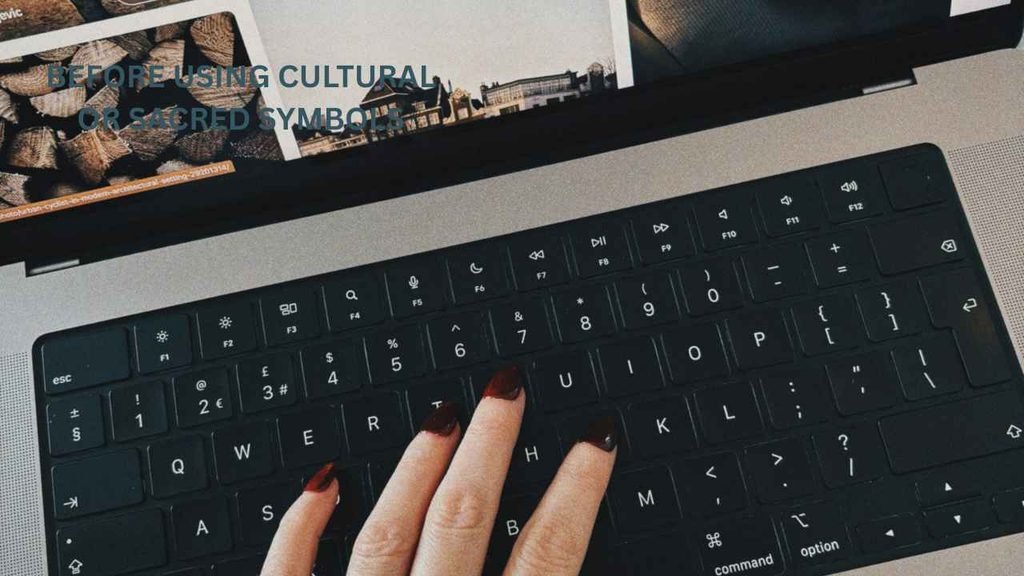
Some symbols have religious, cultural, or spiritual origins. Before using them in tattoos, products, or commercial designs, it’s important to understand their background.
For example:
- Certain symbols are considered sacred in specific religions.
- Meanings can differ across cultures.
- Commercial use may not always be appropriate.
Taking a few minutes to research a symbol’s history helps ensure respectful and informed use.
How to Choose the Right Symbol for Your Needs
Choosing the right symbol becomes easier when you ask yourself a few questions:
- What does this symbol mean to me?
- Will I use it professionally or personally?
- Is it easy to recognize?
- Does it respect its cultural background?
- Will it work well as a tattoo or logo?
A symbol doesn’t need to be complicated to be meaningful. Often, the simplest designs leave the strongest impression.
FAQs About How to Make Symbols With Keyboard
What is the easiest way to make symbols with a keyboard?
The easiest method is using built-in keyboard shortcuts. Windows users can rely on Alt codes, while Mac users can use Option key combinations.
What is the best symbol to type on a keyboard?
The heart symbol (♥) is one of the most popular because it is easy to recognize and widely used across different platforms.
How do I make symbols without a numeric keypad?
You can use the Character Map tool on Windows, the Emoji & Symbols viewer on Mac, or copy and paste symbols from trusted sources.
What is a good keyboard symbol tattoo?
The infinity symbol (∞), heart (♥), and star (★) are among the most popular choices because they are simple and meaningful.
Can I use keyboard symbols in logos?
Yes. Symbols such as stars, arrows, and infinity signs are commonly used in branding because they are memorable and easy to reproduce.
Do keyboard symbols have the same meaning everywhere?
No. Some symbols have different meanings depending on culture, religion, or historical context. Always research symbols before using them publicly.
What is a simple symbol for progress?
The arrow (→) and check mark (✓) are excellent symbols for progress, growth, and moving forward.
Can I create symbols on my phone?
Yes. Most smartphones include a symbols keyboard. You can also press and hold certain keys to reveal additional characters and special symbols.
Final Thoughts
Learning how to make symbols with keyboard shortcuts is a simple skill that can make your writing, designs, and everyday communication more expressive. Whether you’re adding a heart to a message, inserting a copyright notice, or designing a logo, these symbols help communicate ideas quickly and clearly.
The next time you need a special character, remember that it’s probably only a few keystrokes away.

I’m Sophia Bennett, and I have a passion for uncovering the meaning behind symbols used throughout history and across different cultures. I love researching mythology, nature, dreams, and spiritual traditions to explain how symbols shape our understanding of the world.
Writing for Symbolory allows me to share reliable, easy-to-read information that helps readers connect with the stories behind every symbol. My mission is to make symbolism interesting, practical, and accessible for everyone.
Books
- The World of Symbol Meanings
- Sacred Symbols and Modern Interpretations
 Amelia Hart